Is their a way to hide the track splines while in track mode?

Red_Rattler

Since 09 May 2003
Is their a way to hide the track splines while in track mode?

At times, they can make it hard to see, especially if you're measuring something.

Please don't tell me there's no way to hide track splines while in track mode!
 
You could hide the layer on which you have put the tracks. Go to the layer tab (F6) and click on the little "eye" symbol in front of the layer you have your tracks on.
 
You could create a layer called "tracks" and then move the track splines to that layer. (It means right-clicking on the track and changing the layer in the properties. You may also have to do this numerous times, for multiple track sections, (I've never tried it so I'm supposing here). Once your track is on the "tracks" layer, you can then hide and unhide as needed.

It would be nice if there was a checkbox on the layers to hide and hide assets by category. This would speed up the task enormously.

John
 
When you use the tab F4 for the track.
Why would I want to hide them when using the tracks? Because I was using a ruler to measure something while using/adjusting the tracks, and it's hard to see the numbers. And if I adjust the height of the ruler, it hides something else that I may need.

For example, I was trying to move the left rail of the right track as shown here to the 22 metre mark, and you can see the 2 metre mark is hard to see with the spline circle.

Edit: One of the reasons I wanted to move the track over is as shown here. (Note how the mirrors touch each other with that spacing)
 
Last edited:
When you use the tab F4 for the track.
Ah, now that is clear.
Why would I want to hide them when using the tracks? Because I was using a ruler to measure something while using/adjusting the tracks, and it's hard to see the numbers. And if I adjust the height of the ruler, it hides something else that I may need.
Perhaps an extra step but couldn't you just raise or lower the ruler as needed, depending on what you need to measure?
For example, I was trying to move the left rail of the right track as shown here to the 22 metre mark, and you can see the 2 metre mark is hard to see with the spline circle.

Edit: One of the reasons I wanted to move the track over is as shown here. (Note how the mirrors touch each other with that spacing)
If it is a spacing issue, you could use some spacing guides, either the types where the tracks attach to them so the spacing is always exact or the type were the tracks are just visually lined up against the guides. I use both and find them great time savers to keep the track spacing constant.
 
Perhaps an extra step but couldn't you just raise or lower the ruler as needed, depending on what you need to measure?
And if I adjust the height of the ruler, it hides something else that I may need.


If it is a spacing issue, you could use some spacing guides, either the types where the tracks attach to them so the spacing is always exact
I didn't know their was such a thing. Do you know what it's called?
 
Last edited:
Looking at the screen shots, you are moving the rail five points to the right, which actually will put the left hand edge of the spline point on the centre of the left hand tracks right hand rail. So just move the right hand tracks spline so the edge lines up with the left hand right rail. That could in this case save you a lot of time and measuring.
 
I didn't know their was such a thing. Do you know what it's called?
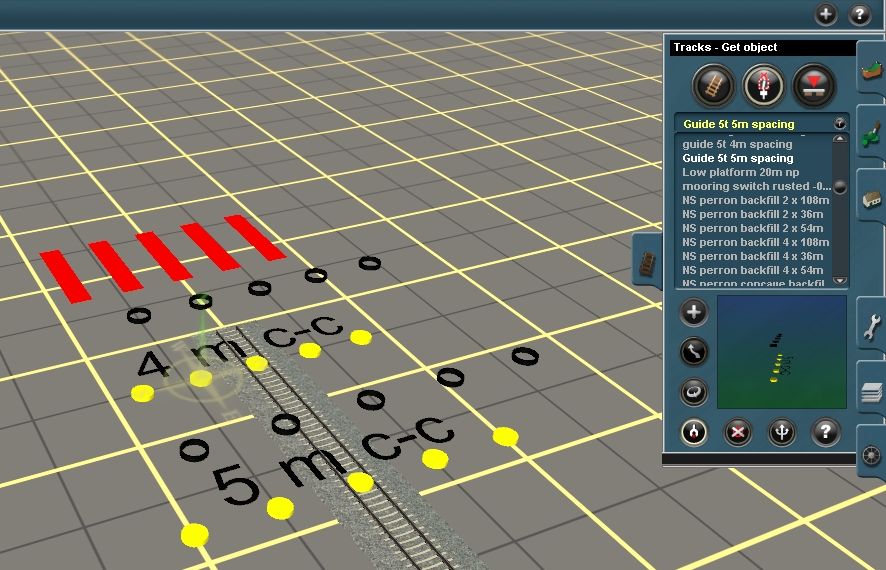
Since you asked, there are several on the DLS. There are three updated for TS2010. They all help guide the placing of other tracks. The first and third don't have any other attached track, you line up the other tracks visually. The second has five tracks that start as invisible and only change when you attach another track.
guide 5t 4m spacing 70337:23015:2
Guide 5t 4m with track 70337:23001:2
Guide 5t 5m spacing 70337:23002:4
martinvk_20130818_0000.jpg

The black rings are guides to place overhead power wires, aka catenary.

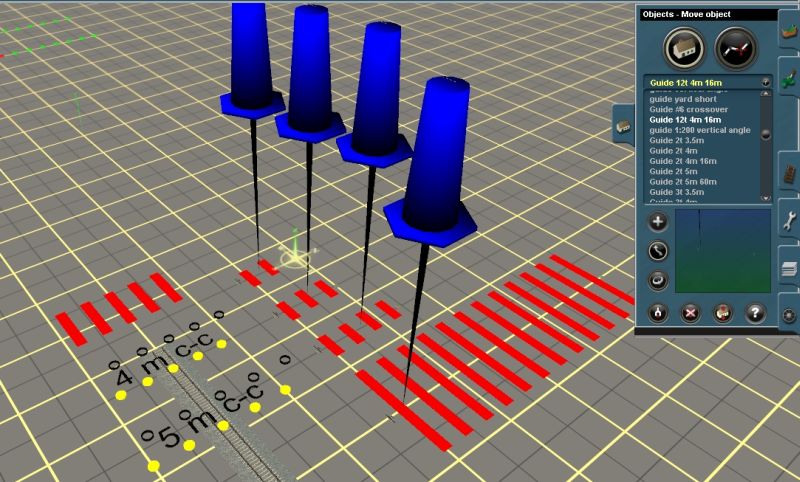
There are also some older guides made for TRS2004 that I still find useful. They have different track spacing (3.5, 4 and 5m) and different number of tracks, 2, 3, 4 and 12.)

Guide 12t 4m 16m 70337:23096:2
Guide 2t 3.5m 70337:23089:2
Guide 2t 4m 70337:23083:2
Guide 2t 4m 16m 70337:23094:2
Guide 2t 5m 70337:23086:2
Guide 3t 3.5m 70337:23090:2
Guide 3t 4m 70337:23084:2
Guide 3t 5m 70337:23087:2
Guide 4t 3.5m 70337:23091:2
Guide 4t 4m 70337:23085:2
Guide 4t 5m 70337:23088:2

The push pins are invisible in Driver. The invisible tracks change to whatever track you attach to the guide.
A few are shown to the right of the new ones.

martinvk_20130818_0003.jpg
 
Back
Top